
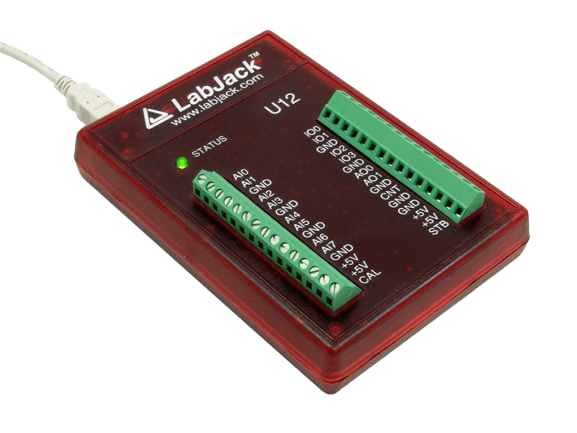
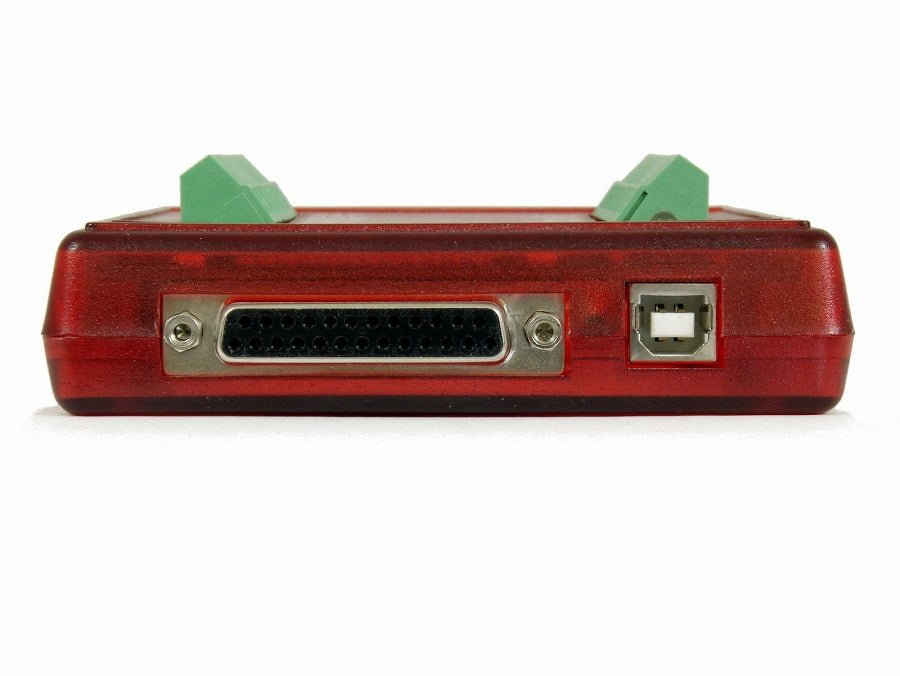
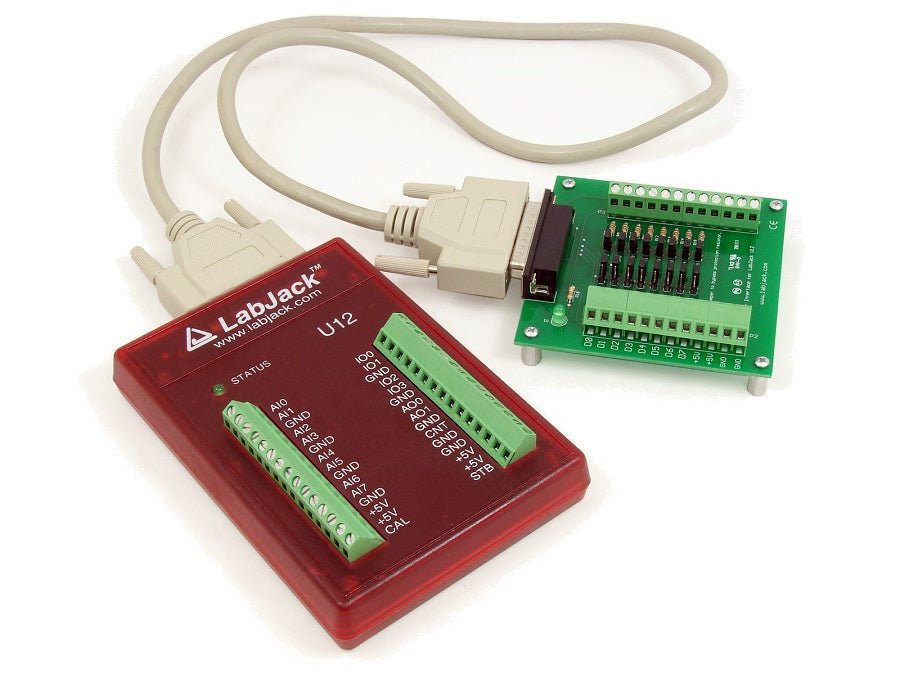
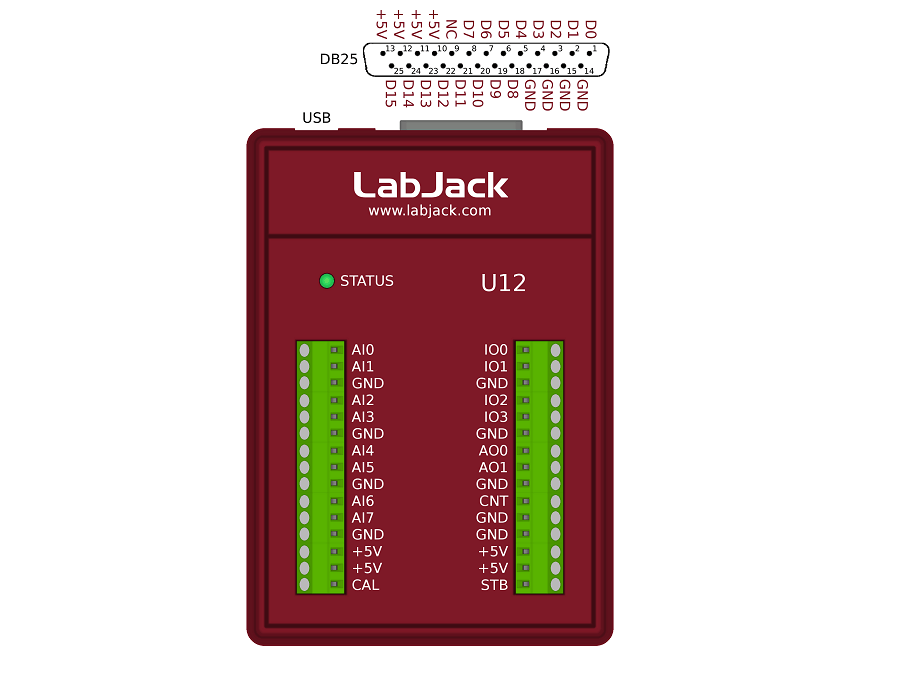
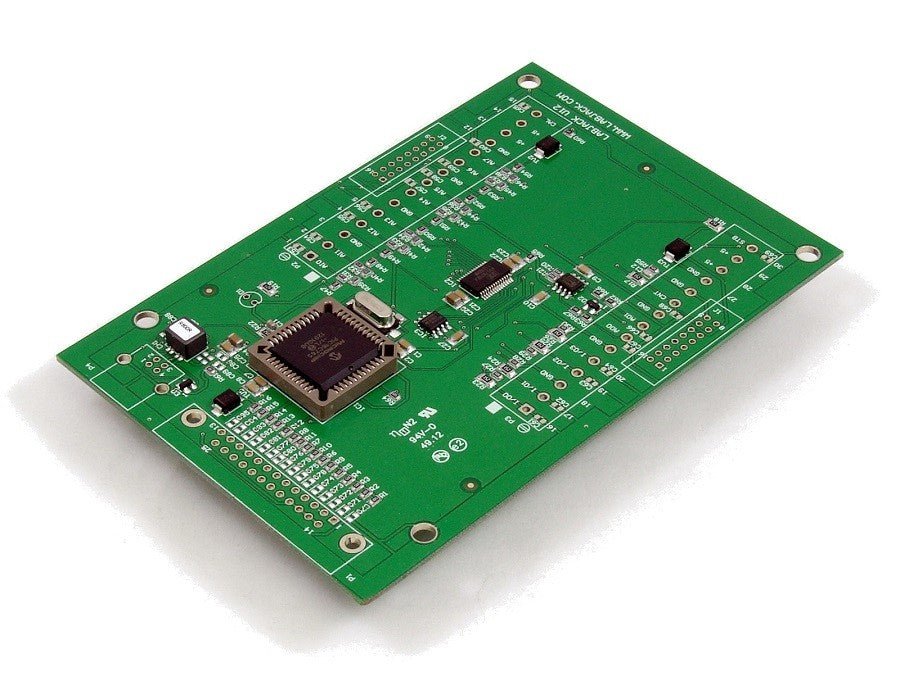
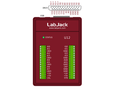
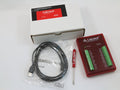
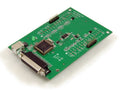
U12 Support Homepage
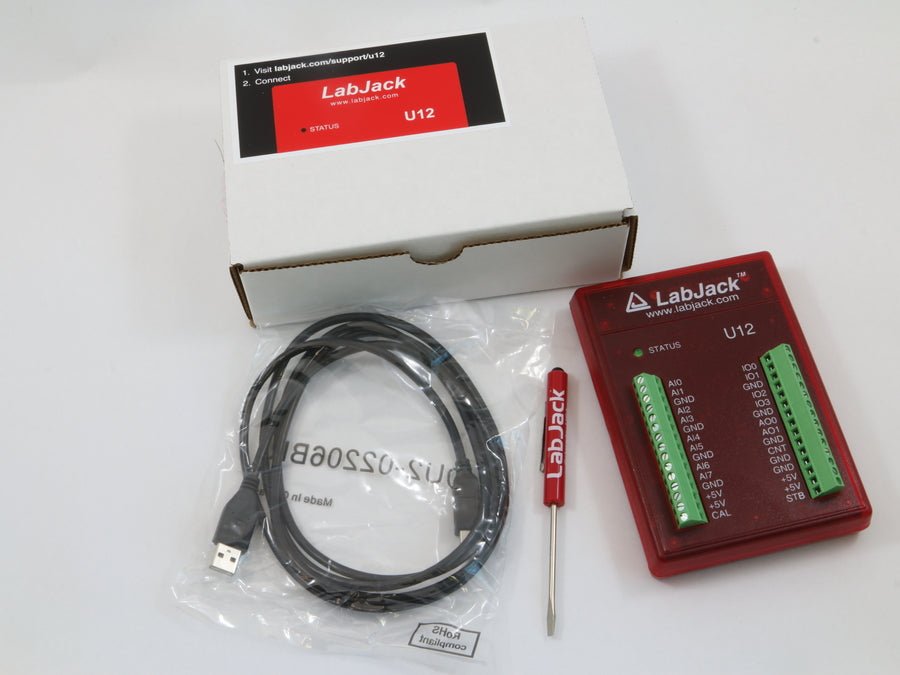
Starting June 2010, we have eliminated CDs and most (if not all) paperwork from our packaging. Now, the U12 simply has a sticker on the box that directs you to this page (/support/u12).
U12 Quickstart for Windows
1. Download and install the Windows Installer.
U12 Device
| Windows U12 Installer 17.56 MB 2009-08-06 09:26 |
This is the installation package for Windows for the U12 Only. It supports both 32-bit and 64-bit versions of Windows XP, Windows Vista, Windows 7 and Windows 8. All high-level functions within the U12 library will be available through this installation.
This installation includes the driver, library, documentation, and utility applications listed below
Utility Applications
- LJConfig 1.07 - Changes the local ID of the U12 with a serial number reference
- LJCounter 1.07 - Reads a counter value and provides the frequency
- LJfg 1.07 - Analog output waveform generator
- LJLogger 1.12 - Logs data up to 2Hz, performs basic trigger events
- LJscope 1.08 - Simulated oscilloscope with 2 analog inputs
- LJstream 1.08 - Logs data up to 300Hz, from up to 4 channels
- LJtest 1.14 - Testing program to verify hardware operation
- LJSHT 1.04 - Reads data from a EI-1050 temperature/humidity probe
- LJSHTmulti 1.01 - Reads data from multiple EI-1050 temperature/humidity probes
Code Library
- U12 Library
Low-level Driver
- U12 Windows Driver
For additional information see the U12 library and driver page here.
Tip: Uninstall previous versions before installing new versions. If a LabJack is connected during installation, unconnect and reconnect when done.
details
| Mac U12 Package 58.56 KB 2013-05-16 16:42 |
This is the installation package for Macintosh for the U12 (ljacklm.zip). All high-level functions within the U12 library will be available through this installation. This installation does not include any utility applications. It should also be noted that you will need to first install the exodriver.
Code Library
- U12 Library
Low-level Driver
- Exodriver X.XX - Driver for Mac and Linux USB communication to and from all LabJack devices
Installation instructions for ljacklm here.
details
| Mac U12 Package 58.56 KB 2013-05-16 16:42 |
This is the installation package for Linux for the U12 (ljacklm.zip). All high-level functions within the U12 library will be available through this installation. This installation does not include any utility applications. It should also be noted that you will need to first install the Exodriver.
Code Library
- U12 Library
Low-level Driver
- Exodriver X.XX - Driver for Mac and Linux USB communication to and from all LabJack devices
Installation instructions for ljacklm here.
2. Connect the U12 to the computer or hub. The status LED should immediately blink 4 times (at about 4 Hz), and then stay off while the computer enumerates (installs) the U12. Earlier versions of Windows will bring up a hardware install window, and you should accept all defaults if prompted. After enumeration the LED will blink twice and remain solid on.
If the U12 fails to enumerate:
- Make sure you are running Windows OS version 4.10.2222 or higher,
- If Win98SE, check out win98sehid.zip,
- Try connecting the U12 to another PC,
- Try connecting a different USB device to the PC,
- More U12 troubleshooting info.
3. Run LJtest.exe which was installed during step #1 above. There should be nothing connected to the U12 besides USB, and do not select "Test Fixture Installed" or "Continuous". Close when done.
4. Run LJlogger.exe for basic testing and datalogging.
Some basic tests:
- Connect a jumper wire from AO0 (Analog Out 0) to AI0 (Analog In 0). Use the control towards the upper-left of LJlogger to change AO0, and you should read back the voltage on AI0 as shown in the first row of the voltage column to the right.
- Connect one end of a jumper wire to +5V. Tap the other end inside the CNT terminal, and each tap will cause 10-50 counts or so on the Counter indicator.
- Take the same +5V wire and hold the other end inside the IO0 terminal. Element 0 of the IO State Read indicator should turn black to indicate the digital input is reading high.
- Connect a jumper wire from IO1 to AI1. Click (turn black) element 1 of the IO Direction control. Now toggle element 1 of the IO State Write control and the voltage reading on AI1 should change from 0 to 5 volts.
5. Refer to the U12 User's Guide.
Moving forward from here ...
Software Options:
- Sample Applications: A great place to start, and for many people all they ever need.
- Programming: We have drivers/examples available for many languages.
- DAQFactory: DAQFactory is measurement and automation software from Azeotech. The free Express version of DAQFactory works with the U12. DAQFactory allows non-programmers to make custom applications. It is easy to collect input data, convert to engineering units, display it, and log it to file, without any programming. Scripting is also supported so you can do advanced applications with control and automatic setting of outputs. Check out www.daqexpress.com.
Getting Support:
- If you have a question that you think should be covered in the documentation, try going to where you think it should be and post a comment. Go to the U12 User's Guide, and at the top or bottom of any page click "Add new comment".
- Other great options are our forum or email.
Search
Shopping Cart
Testimonials
-
I would like to complement you on the excellent product you have developed. [...] The documentation is perhaps the best presentation of support material I have ever seen. The example programs are extensive, and well thought out. The labs I have developed work beyond my expectations.
—Len, Seneca College, Toronto

Comments
#1
I would like to use Labjack U12 with Matlab but I have some problems. Matlab shows me this error message:>> header='C:\Program Files (x86)\LabJack\drivers\ljackuw.h'
header =
C:\Program Files (x86)\LabJack\drivers\ljackuw.h
>> ljud_LoadDriver
Error using loadlibrary>lFullPath (line 586)
Could not find file C:\progra~1\LabJack\drivers\labjackud.h.
Error in loadlibrary (line 220)
header=lFullPath(header);
Error in ljud_LoadDriver (line 10)
loadlibrary('labjackud',header);
#2
The path has changed with our new installers so needs to be modified to point to the correct location of the ljackuw.h file. However, we are looking at doing support for newer versions of Matlab in a different way that should be much easier. Please see this: http://forums.labjack.com/index.php?showtopic=6053&view=findpost&p=20472